
SEGi Microsoft Email Account
In SEGi, all students will be given a Microsoft Email Account, in which students are able to enjoy a full access to the Microsoft Office Suite, Microsoft Teams for communication, One Drive for share storage and many more! We mainly communicate on all academic related matters through this email, and you will also need this email to login to the Learning Management System (SPARK). We recommend that all students to make full use of this email account throughout your study with us in SEGi.
Below will be the guide to login to your Microsoft Email Account for the first time.
STEP 1:
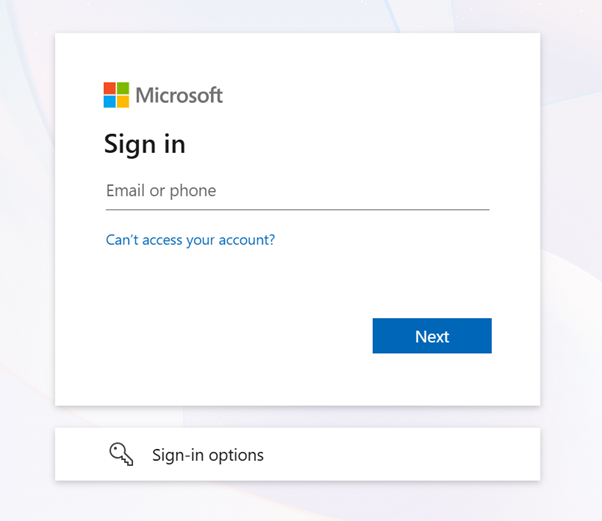
Sign In with your student email address of this pattern: student [email protected] (eg: [email protected]),
The password is a default password that is sent to you along with the Admission Offer Letter.
For issues of:
- Email account not in system or doesn’t exist
- Default password but it does not allow you to login
- Multiple fail attempts causing the account to be locked
Kindly contact our IT centre through SEGiConnect for assistance.
STEP 2:
Upon successful login, you will need to create your own password. Strongly recommend creating a password that are not easily guessed and with combination of alpha-numeric and symbols with the password length that is no less than 8 characters.
STEP 3:
Once password is set, you will then be asked to setup the Multi-Factor Authentication (MFA). Please follow the instructions as given.
If you are new to MFA and needed to know more about MFA, please click here to learn more about it. It has also a detail step by step guide on how to setup.
Other User Guides
- SPARK
- Multi-factor Authentication (MFA)
- Identific/Plagiarism Check
- SEGi Sphere